Free Online Image Tools
59 free tools to compress, convert, resize, edit and create images - right in your browser. No signup, no limits, and your images never leave your device.
Explore All ToolsMost Popular Tools
Compress JPG
Shrink JPG photos with a quality slider and live size savings.
PNG to JPG
Convert PNG to JPG with a background color for transparent areas.
JPG to PNG
Turn JPG photos into lossless PNG files, in batch.
Resize Image
Change image dimensions in pixels or percent, keeping proportions.
WebP to JPG
Convert WebP images to universally supported JPG files.
Crop Image
Trim images to free sizes or fixed ratios like 1:1 and 16:9.
Image to PDF
Combine images into one PDF, each image on its own page.
HEIC to JPG
Convert iPhone HEIC photos to JPG you can open anywhere.
All Tools
Compress
Compress JPG
Shrink JPG photos with a quality slider and live size savings.
Compress PNG
Re-encode PNG files and optionally cap their width to cut size.
Compress WebP
Re-encode WebP images at a lower quality to save space.
Bulk Image Compressor
Compress a whole batch of images at once and download everything as one ZIP.
Reduce Image Size
Shrink an image to an exact target size in KB for upload forms and portals.
Convert
JPG to PNG
Turn JPG photos into lossless PNG files, in batch.
PNG to JPG
Convert PNG to JPG with a background color for transparent areas.
WebP to JPG
Convert WebP images to universally supported JPG files.
JPG to WebP
Convert JPG photos to modern, smaller WebP files.
PNG to WebP
Convert PNG to WebP, keeping transparency, at a smaller size.
WebP to PNG
Convert WebP back to PNG with transparency preserved.
HEIC to JPG
Convert iPhone HEIC photos to JPG you can open anywhere.
SVG to PNG
Render SVG vector files to PNG at the width you choose.
AVIF to JPG
Convert AVIF images to JPG for wider compatibility.
Image to Base64
Encode an image as a Base64 data URL for CSS, HTML and code.
Base64 to Image
Decode Base64 text back into a viewable, downloadable image.
Batch Image Converter
Convert a whole batch of images to JPG, PNG or WebP in one pass, ZIP included.
PNG to SVG
Trace a PNG, JPG or logo into SVG vector paths - best for flat graphics and logos.
ICO Converter
Convert any image into a Windows .ico file with 16, 32, 48 and optional 256 px icons.
Resize
Resize Image
Change image dimensions in pixels or percent, keeping proportions.
Crop Image
Trim images to free sizes or fixed ratios like 1:1 and 16:9.
Social Media Resizer
Resize and crop photos to exact platform sizes: Instagram, YouTube, X and more.
Smart Image Resizer
Downscale photos with high-quality resampling for visibly sharper results.
Edit
Rotate Image
Rotate photos 90 degrees at a time or by a fine angle.
Flip Image
Mirror images horizontally or flip them vertically.
Photo Editor
Adjust brightness, contrast, color and mood with live sliders.
Add Text to Image
Write captions on images with size, color and outline controls.
Watermark Image
Stamp a text watermark, single or tiled, at any opacity.
Blur Face
Hide faces, plates and details with blur or pixel blocks.
Add Border
Give images a clean frame with any width and color.
Round Corners
Round image corners with a radius slider; PNG keeps the transparency.
Blur Image
Soften a whole image with a blur or pixelate effect.
Adjust Brightness
Make a photo lighter or darker with one focused control.
Adjust Contrast
Add punch or softness by controlling contrast alone.
Adjust Saturation
Make colors vivid or muted with a single saturation slider.
Image Filters
One-click photo looks: Vintage, Noir, Warm, Vivid and more.
Grayscale Image
Convert a photo to true black and white using luminance.
Remove Background Color
Make one solid background color transparent - click the color, tune tolerance.
Add Background Color
Place a solid color behind a transparent image and save it flattened.
Create
Meme Generator
Add bold top and bottom captions to any image.
GIF Maker
Build an animated GIF from a set of still images.
Favicon Generator
Generate a full favicon set, including a real favicon.ico.
Passport Photo
Crop a portrait to official passport and ID photo sizes.
Photo Collage Maker
Combine up to 9 photos into one collage with clean layouts.
Thumbnail Maker
Design a bold 1280x720 YouTube thumbnail with big title text.
Image Splitter
Split one image into a grid of tiles for Instagram multi-posts.
Image Merger
Join two or more images into one: stacked, side by side, or in a grid - in your order.
QR Code Generator
Turn any link or text into a real, scannable QR code - PNG or SVG download.
Instagram Post Maker
Compose a finished Instagram post: photo, headline and handle at exact post size.
PDF Tools
Image to PDF
Combine images into one PDF, each image on its own page.
PDF to Images
Turn every page of a PDF into PNG or JPG images, right in your browser.
Advanced Tools
EXIF Viewer
See the camera, lens, date and GPS data hidden in a photo.
Remove Metadata
Strip EXIF and GPS data from images by clean re-encoding.
Color Picker
Click any pixel to get its HEX, RGB and HSL values, plus a palette.
Image Resolution Checker
Check dimensions, megapixels, aspect ratio, DPI and print sizes.
Color Palette Generator
Extract an 8-color palette from any image, with HEX codes.
Image Format Detector
Detect a file's real format from its bytes - catch renamed images.
Image Size Calculator
Estimate image file size from dimensions, format and quality.
Image DPI Calculator
Convert between pixels, print inches and DPI - and read a real file's stored DPI.
Browse by Category
Compress
Shrink JPG, PNG and WebP files, one at a time or in bulk, down to an exact KB target.
Convert
Change formats in any direction: JPG, PNG, WebP, AVIF, HEIC, SVG, ICO, Base64 and batch conversion.
Resize
Exact pixels, percentages, high-quality downscaling and platform-perfect social sizes.
Edit
Rotate, filter, adjust, watermark, blur, borders, backgrounds - the full editing shelf.
Create
Make something new: memes, GIFs, collages, thumbnails, passport photos, QR codes and merged images.
PDF Tools
The bridge between images and documents: images into one PDF, PDF pages back into images.
Advanced Tools
Inspect and understand your files: metadata, true formats, resolution, DPI and size math.
All Tools A-Z
Every ImgBleu tool on one page, with instant search and suggestions.
New Tools
Bulk Image Compressor NEW
Compress a whole batch of images at once and download everything as one ZIP.
Reduce Image Size NEW
Shrink an image to an exact target size in KB for upload forms and portals.
PDF to Images NEW
Turn every page of a PDF into PNG or JPG images, right in your browser.
Blur Image NEW
Soften a whole image with a blur or pixelate effect.
Adjust Brightness NEW
Make a photo lighter or darker with one focused control.
Adjust Contrast NEW
Add punch or softness by controlling contrast alone.
Adjust Saturation NEW
Make colors vivid or muted with a single saturation slider.
Image Filters NEW
One-click photo looks: Vintage, Noir, Warm, Vivid and more.
Grayscale Image NEW
Convert a photo to true black and white using luminance.
Remove Background Color NEW
Make one solid background color transparent - click the color, tune tolerance.
Photo Collage Maker NEW
Combine up to 9 photos into one collage with clean layouts.
Social Media Resizer NEW
Resize and crop photos to exact platform sizes: Instagram, YouTube, X and more.
Thumbnail Maker NEW
Design a bold 1280x720 YouTube thumbnail with big title text.
Image Splitter NEW
Split one image into a grid of tiles for Instagram multi-posts.
Image to Base64 NEW
Encode an image as a Base64 data URL for CSS, HTML and code.
Base64 to Image NEW
Decode Base64 text back into a viewable, downloadable image.
Image Resolution Checker NEW
Check dimensions, megapixels, aspect ratio, DPI and print sizes.
Color Palette Generator NEW
Extract an 8-color palette from any image, with HEX codes.
Image Format Detector NEW
Detect a file's real format from its bytes - catch renamed images.
Image Size Calculator NEW
Estimate image file size from dimensions, format and quality.
Batch Image Converter NEW
Convert a whole batch of images to JPG, PNG or WebP in one pass, ZIP included.
Smart Image Resizer NEW
Downscale photos with high-quality resampling for visibly sharper results.
Image Merger NEW
Join two or more images into one: stacked, side by side, or in a grid - in your order.
QR Code Generator NEW
Turn any link or text into a real, scannable QR code - PNG or SVG download.
Instagram Post Maker NEW
Compose a finished Instagram post: photo, headline and handle at exact post size.
PNG to SVG NEW
Trace a PNG, JPG or logo into SVG vector paths - best for flat graphics and logos.
ICO Converter NEW
Convert any image into a Windows .ico file with 16, 32, 48 and optional 256 px icons.
Image DPI Calculator NEW
Convert between pixels, print inches and DPI - and read a real file's stored DPI.
Add Background Color NEW
Place a solid color behind a transparent image and save it flattened.
Why ImgBleu?
100% private
Every tool runs in your browser with the Canvas API. Your images are processed on your device and are never uploaded to any server.
No signup, no limits
No accounts, no daily task counters, no premium wall for basic work. Open a tool and use it as many times as you like.
Batch friendly
Most tools accept many images at once and give you a Download all as ZIP button, so a whole folder takes seconds, not minutes.
Free forever
The site is supported by advertising, which keeps all 59 tools free for everyone.
Your privacy, by design
Never uploaded
Every tool processes your images locally with the Canvas API. There is no ImgBleu server receiving your files - the work happens on your own phone or computer, start to finish.
No accounts
No sign-up, no sign-in, no profile to create. The tools simply open and work, so there is no account database holding anything about you.
Nothing tracks your images
We cannot see, store or analyze your pictures: the code that handles them runs on your device, and the results go straight to your downloads.
Works on your device
Once a tool page has loaded, its processing runs entirely on your device. The few tools that fetch a decoder library from a CDN say so on their page.
Latest from the Blog
How to Compress JPG Without Losing Quality (The Settings That Matter)
What the JPG quality setting really does, when compression loss is genuinely invisible, how WebP compares at matched quality, and the right workflow for web and print.
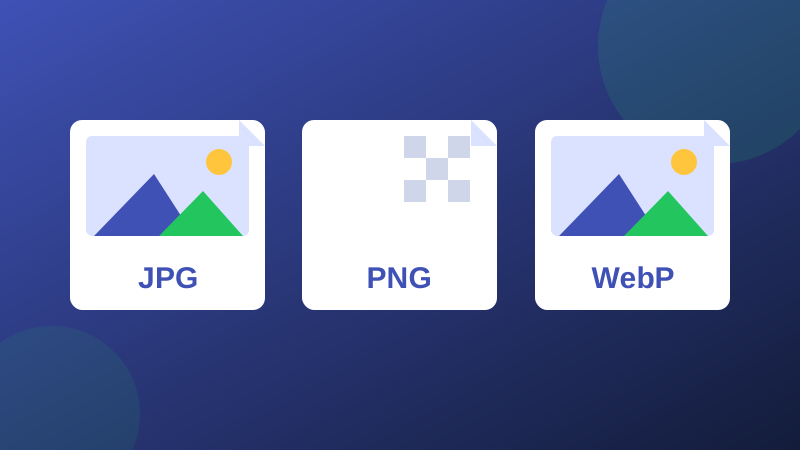
JPG vs PNG vs WebP: Which Format Should You Use?
A three-way decision guide to JPG, PNG and WebP: a comparison table, what each format is genuinely best at, and a verdict for every common use case.

How to Optimize Images for Google: A Practical Image SEO Guide
Image SEO without tricks: descriptive file names, honest alt text, the right sizes and formats, page speed, and structured data basics that help Google understand your images.
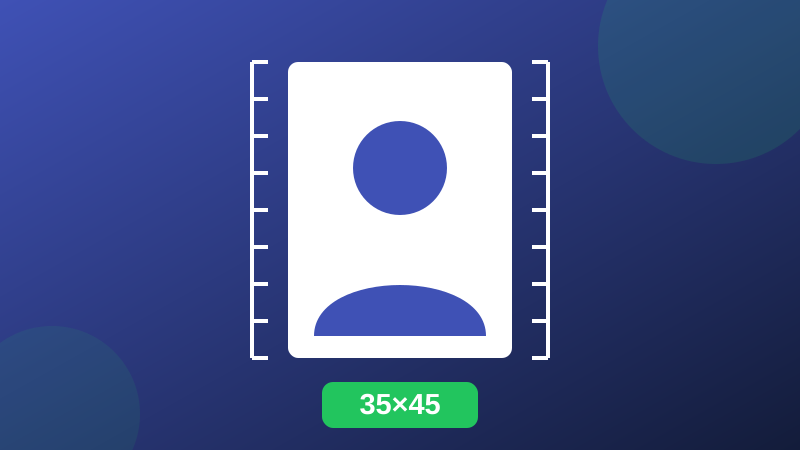
How to Create a Passport Photo at Home: Sizes, Rules and Printing
Make a passport or ID photo that gets accepted: official sizes for 18 standards, lighting and background rules, the mistakes that cause rejections, and how to print a sheet at home.
How to use ImgBleu
- Pick a tool - search above or browse by category; every tool opens instantly, no account needed.
- Drop your image - drag it in, click to browse, or paste from the clipboard. It stays on your device.
- Download the result - one by one, or as a single ZIP for batches. Your original file is never changed.
Frequently asked questions
Are the tools really free?
Yes. Every tool on ImgBleu is free to use with no daily limits, no watermarks added by us, and no account to create.
Are my images uploaded to your servers?
No. All tools run 100% in your web browser using the Canvas API. Your images are processed on your own device and never leave it, which you can verify by using the site while offline after it loads (except the few tools that load a decoder library).
Which formats are supported?
JPG, PNG, WebP, GIF, SVG, AVIF, BMP and HEIC inputs are supported depending on the tool, with JPG, PNG and WebP as the main outputs, plus PDF, GIF and ICO in the Create tools.
Is there a file size or batch limit?
ImgBleu sets no artificial limit. Very large images are limited only by your device's memory, since all processing happens locally.
How is ImgBleu different from other image tool sites?
Three things: your files are never uploaded, there is no signup wall, and there are no daily task limits. The same browser technology that powers the tools also guarantees your privacy.
Can I download a whole batch as one ZIP file?
Yes. On multi-file tools, process your images and use the Download all as ZIP button. The ZIP library is loaded only when you click it, and the archive is built on your device - your files still never leave it.
What is dark mode and how do I use it?
Use the moon button in the top bar to switch between light and dark themes. Your choice is saved on this device, and on your first visit ImgBleu follows your system preference automatically.